
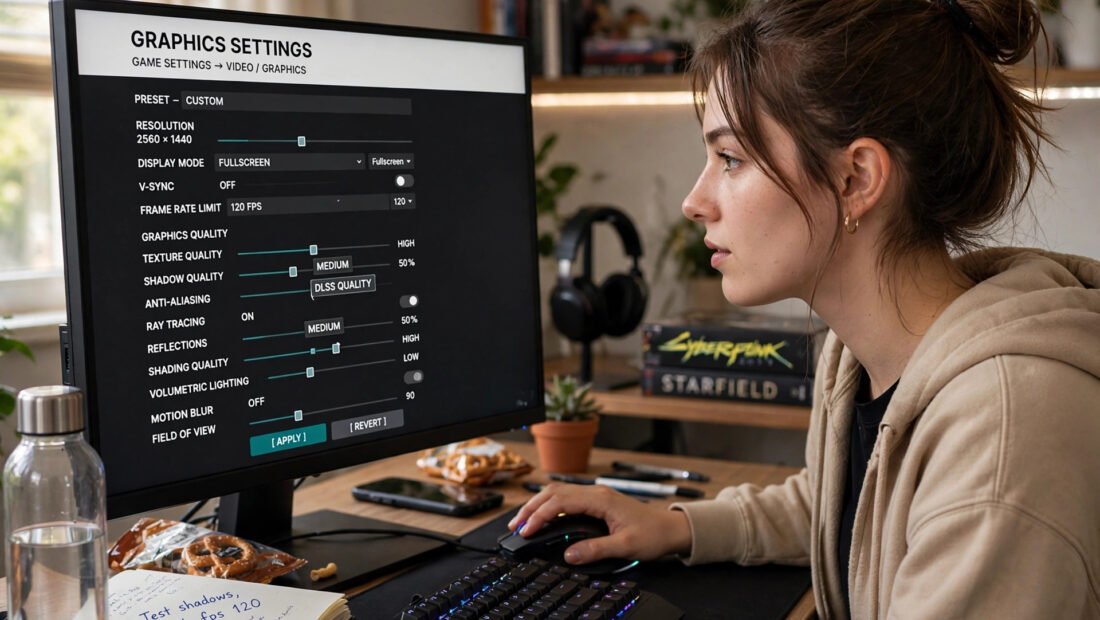
You followed a “BEST FPS SETTINGS 2026” video, changed forty settings — and your games run worse. PC optimisation is full of folk wisdom that is outdated, wrong, or actively harmful: disabling services Windows needs, maxing settings your hardware cannot sustain, or “optimising” the network into instability. The mistakes below are the ones that actually cost frames, and every one has a proper fix.
This guide covers the biggest PC optimisation mistakes, why they hurt, and what to do instead — for desktops and laptops alike.
Mistake 1: Maxing Settings Your Hardware Cannot Sustain
The most common mistake is also the simplest: cranking everything to Ultra on hardware built for Medium. The result is not just lower fps — it is inconsistent fps, with stutters and frame-time spikes that feel far worse than a stable lower setting. A locked 60fps at Medium always beats a juddering 45–70fps at Ultra.
Optimise methodically: start from the game’s auto-detected settings, then lower the most expensive settings first — shadows, volumetric fog/clouds, ray tracing, and anti-aliasing above what your resolution needs. Change one setting at a time and benchmark (most games have built-in benchmarks; otherwise use a consistent gameplay section). Cap your frame rate at your monitor’s refresh rate — uncapped fps wastes power generating frames you cannot see, and increases heat and noise. Speaking of heat: why laptops overheat and shut down explains the thermal side that settings alone cannot fix.
Mistake 2: Trusting “Game Booster” Software
Game boosters promise one-click optimisation and deliver mostly placebo. What they actually do — closing background apps, clearing RAM — you can do better yourself in two minutes, and some aggressively disable Windows services that games and drivers need, causing crashes and weirder problems than they solve. Windows 11’s built-in Game Mode does the sensible version of this already: prioritising game processes and suppressing Windows Update interruptions.
The manual version that works: before gaming, close browsers (Chrome with 30 tabs eats gigabytes of RAM), pause cloud sync and backups, disable Discord hardware acceleration if it causes stutters, and set Steam/Epic to not download during gameplay. Two minutes, zero software, better results than any booster. For a deeper system cleanup, see making an old laptop run faster — the same principles apply to desktops.
Mistake 3: Ignoring Drivers and Firmware
Outdated GPU drivers are the silent fps killer — Nvidia and AMD’s “Game Ready” drivers routinely add 5–15% performance in new releases via optimised shader compilation. Yet a huge fraction of gamers run drivers months old. Enable automatic driver checks (GeForce Experience, AMD Adrenalin) and update before major launches.
Equally neglected: chipset drivers, BIOS/UEFI updates (which fix performance bugs and enable features like Resizable BAR — free fps on supported hardware), and SSD firmware. And the classic: plugging the monitor into the motherboard instead of the GPU — integrated graphics running your 4K display while the GPU idles is embarrassingly common and instantly fixed. Check your cables before your settings.
Mistake 4: Disabling Things Windows Actually Needs
Optimisation guides love telling you to disable SysMain, Windows Search, Game Bar, and assorted services. Some of this is harmless; some of it breaks things. Disabling Windows Search cripples the Start menu; killing SysMain on an SSD system gains nothing; and registry “tweaks” from random forums are how you get an unbootable PC. The performance gains from service-disabling on modern Windows are negligible — Windows 10/11 manage resources well on any machine built in the last decade.
What actually helps instead: ensure Windows power plan is set to High Performance/Best Performance when plugged in (laptops often ship on Balanced, which throttles the CPU); disable startup apps you do not need (Task Manager → Startup — this one is safe and effective); and keep 15–20% free space on your SSD (full SSDs slow dramatically). Boring, safe, effective — the opposite of registry voodoo.
Mistake 5: Neglecting Thermals and Power
Your PC cannot sustain performance it cannot cool. Dust-clogged fans, dried thermal paste (after 3–5 years), blocked vents, and cases with no airflow all cause thermal throttling — the CPU/GPU slowing itself to avoid damage, producing exactly the mysterious fps drops that settings cannot explain. Symptoms: performance that starts fine and degrades over 20–30 minutes, fans screaming constantly, crashes under load.
Fixes in order: clean dust filters and fans (compressed air, PC off), improve case airflow (cable management, fan configuration — intake front/bottom, exhaust rear/top), ensure the PC is not in an enclosed cupboard, and for older machines, consider repasting the CPU/GPU (or paying a shop £40–£60 to do it). Laptop users: use a cooling pad, elevate the rear for airflow, and accept that sustained loads will always throttle more than desktops. Monitor temperatures with free tools (HWiNFO) — knowledge beats guessing. And be aware of the running costs of pushing hardware hard: console electricity costs give a sense of gaming’s power draw; PCs draw more.
Mistake 6: Optimising the Wrong Bottleneck
All the settings tweaks in the world cannot fix a hardware bottleneck you have misdiagnosed. Low fps with low GPU usage means the CPU is the limit (common in simulation and strategy games); stuttering with full RAM means memory; hitching during loading means storage (an SSD is the single biggest upgrade for old systems). Use monitoring overlays (RTSS, built-in GeForce/AMD overlays) to see which component maxes out — then target the real constraint.
Similarly, do not confuse network lag with fps problems: rubber-banding and teleporting are connection issues; choppy visuals are hardware. Fix the right problem. Which? tech advice and BBC technology coverage both track the hardware landscape if an upgrade is genuinely due.
The 10-Minute Optimisation Routine
Do this before every gaming session and skip the folk remedies entirely. Update GPU drivers if an update is pending (two minutes). Close browsers, launchers and background downloads (one minute). Set the Windows power plan to Best Performance and confirm Game Mode is on (one minute). In-game: verify you are using the right GPU output, cap fps at your monitor’s refresh rate, and drop shadows one notch if anything stutters (five minutes). Check thermals occasionally with a free monitor. That is the entire evidence-based optimisation playbook — ten minutes, zero registry edits, zero booster software, and better results than any forty-setting YouTube guide.
Conclusion
Smoother gameplay comes from avoiding the classic mistakes: do not max settings your hardware cannot sustain (prefer locked 60fps at Medium over juddering Ultra), skip game boosters in favour of manual cleanup, keep drivers and firmware current, stop disabling Windows services you need, fix thermals before tweaking settings, and diagnose the real bottleneck before “optimising.” Methodical beats magical — every time.
Frequently Asked Questions
Do game boosters actually work?
Barely — they close background apps you could close yourself, and some disable services games need. Windows Game Mode plus two minutes of manual cleanup outperforms them.
Why does my fps drop after 30 minutes of gaming?
Almost certainly thermal throttling: heat builds up, the CPU/GPU slow down to protect themselves. Clean dust, improve airflow, monitor temperatures, and consider repasting older machines.
Should I disable Windows services for gaming?
No — modern Windows manages resources well, and disabling services risks breaking things for negligible gains. Disable unneeded startup apps instead; that is safe and effective.
What is the single biggest fps upgrade?
For old systems: an SSD (if still on a hard drive) or a GPU upgrade. For settings: lowering shadows and disabling ray tracing. For free: updating GPU drivers and capping fps at your monitor’s refresh rate.


